
Configure Approval Workflow for a Template
Note: The Approval Workflow process is an optional feature that must be enabled within your account. For more information on this feature, see Approval Workflow.
Distributed Marketing supports a manual review / approval workflow process for Mailings. Within your Distributed Marketing account, this feature can be enabled at either a Template level or at a Client Node level.
-
Template Level: If the Approval Workflow is enabled for a Template, all Mailings created with that Template must be reviewed by a designated approver (or multiple approvers) before the Mailing is submitted to the email deployment system. See below for more information on how to configure the Approval Workflow feature for a Template.
-
Client Node Level: If the Approval Workflow is enabled for a Client Node, all Mailings created within that Client Node must be reviewed by a designated approver (or multiple approvers) before the Mailing is submitted to the email deployment system. See View or Edit Client Node Settings for more information on how to configure the Approval Workflow for a Client Node.
If the Approval Workflow feature has been enabled at a Template level in your account, the Content Editor screen allows you to configure this feature for the currently selected Template, by determining the number of required approvers, and identifying who can approve Mailings.
To configure the Approval Workflow settings for the currently selected Template:
-
From the User Details drop-down menu in the top-right corner of the screen, select Admin. The Administration window is displayed.
-
From the tool bar at the top of the Administration window, click Campaign Templates. The Templates screen is displayed. For each of your Templates, this screen lists its name, status, and owner.
-
Optionally, search for the desired Template (see Search for a Template for more information on the available search options).
-
Click the desired Template. The Content Editor is displayed and populated with the HTML code of the selected Template.
-
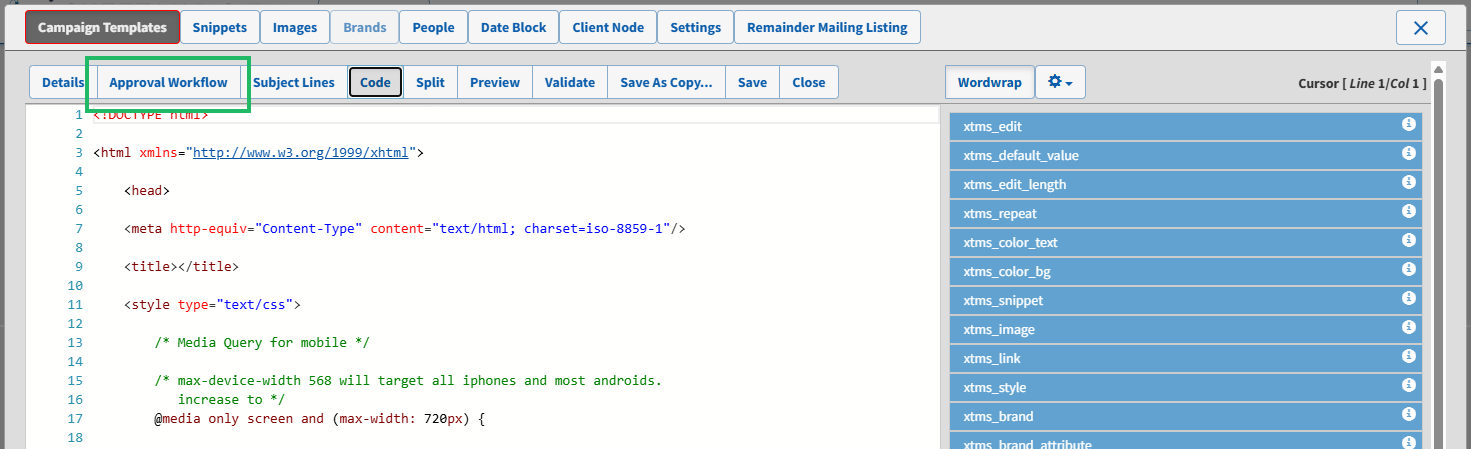
Within the tool bar at the top of the Content Editor, click Approval Workflow. The Approval Workflow screen is displayed.
-
Optionally, in the Number of Approvers Required field, enter the number of people that must approve a Mailing. Or, click Use Default Value to use the default number assigned for this Template. This default value is configured by aZeta Administrator.
-
The tab lists all the Users in your Distributed Marketing account who have been enabled as "approvers." Check one or more of these Users to assign them as approvers for this Template.
Note: The process of enabling a User to be an approver is handled by your Zeta Administrator.
-
Optionally, in the Additional Approvers field, enter one or more additional email addresses for Users who can also serve as approvers. Multiple email addresses should be separated by commas.
